Tell Your Client Where The Project Stands, In A Minute
If you're new here: OneCamp is a self-hosted workspace (chat, tasks, docs, calls, calendar and AI agents) that you install on your own server. It is open source and free for up to 25 people.
Most weeks someone writes a status update by hand. They scroll the board, count what got done, try to remember what slipped, and paste it into a message. A client who wants to know how their project is going gets that message, if they get one at all.
Projects in OneCamp now have updates: where the project stands, and what changed, in a few lines. The part that takes time, gathering the facts, is done for you.
Writing one takes a minute
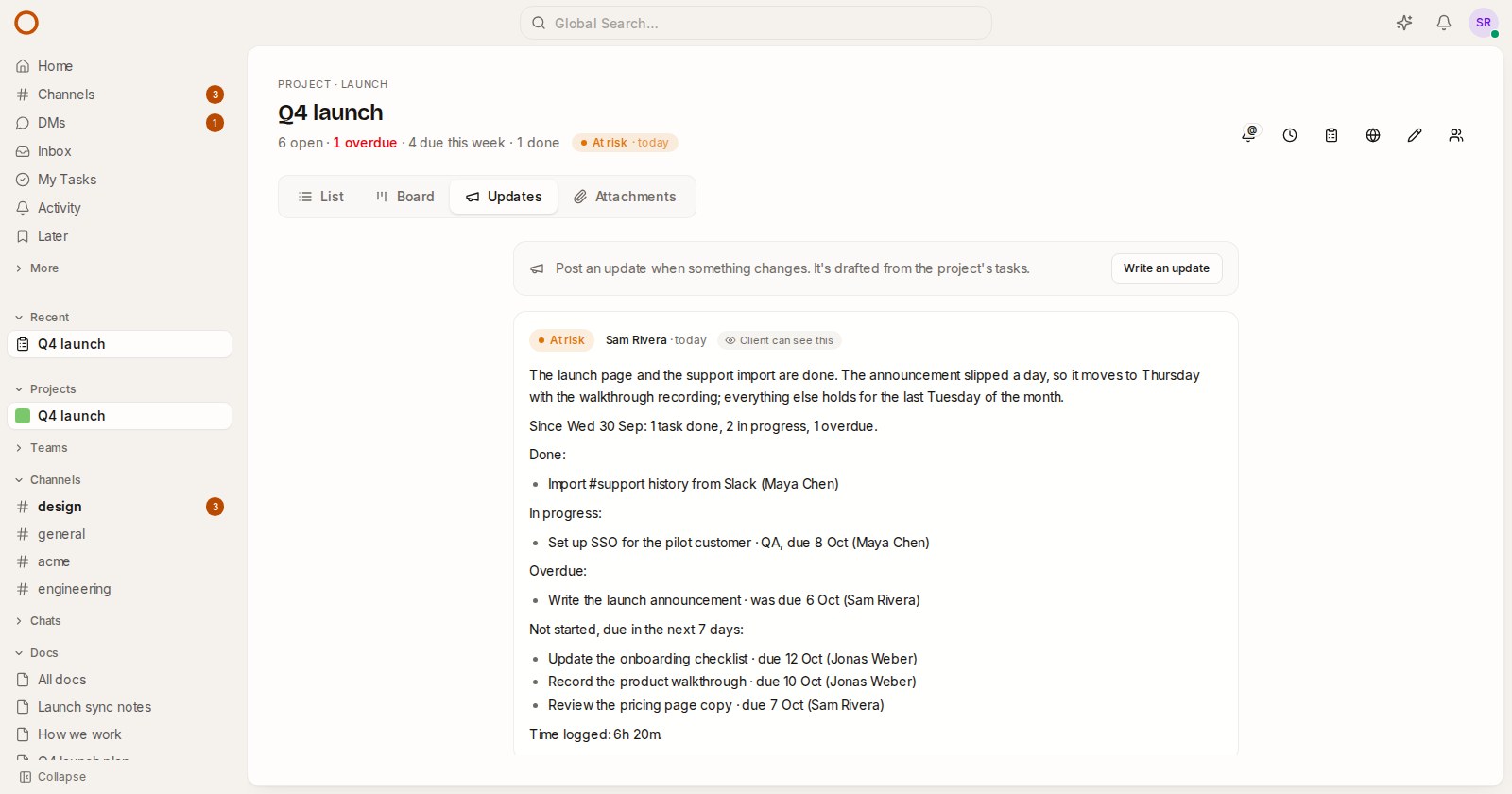
Open a project and its new Updates tab, and press Write the first update. The box opens with a draft built from the project's tasks since the last update:
- what was done, what's in progress, and how many tasks were added;
- what hasn't moved for a week or more;
- what's overdue, and what hasn't started but is due in the next 7 days;
- the time logged, if your team tracks time.
Each task appears once, in the place that says most about it: a late task under Overdue, a stalled one under Stuck. The picture at the top is a real one from the demo: one task done, one late, three due this week.
Above the draft you choose where the project stands: On track, At risk, Off track, On hold or Done. One of them is marked suggested. It says At risk when something is late or stuck, and Off track when three or more tasks are late (or a quarter of what's open). The call is yours, though. A project can be on track with a late task nobody is worried about.
Add a sentence of your own at the top, say what you want to say, and press Post update (or Ctrl/⌘ + Enter). The text is plain: a blank line for a new paragraph, "- " at the start of a line for a list.
Who reads it
- The team. The project's members are told, by email if they get emails about task changes.
- A channel. Also post in a channel puts it in #launch or wherever your team talks, posted by you.
- Your client. Show on the project's client link puts it at the top of the page your client sees when you've shared the project with them. They see the newest update first and earlier ones a click away, without an account.
That last one is for agencies and freelancers. The flow from the last few weeks now runs end to end. You share the project with your client, they follow the work and approve it, they read your update every week, and you send the invoice from the time you logged. All of it runs on your own server.
It reminds you
Once the newest update is a week old, the project's admins see An update is due on the Updates tab. Next to the project's name, a small chip shows the latest update's health and how long ago it was posted. Press it and you're on the Updates tab.
An AI summary, if you want one
In OneCamp with AI, Add an AI summary writes two or three sentences above the facts, in the voice of your team's recent updates. The facts stay as they are underneath, so anything the summary claims can be checked right below it. Undo the AI summary takes it out. Without AI, everything above works the same. The draft never needed a model.
I tested the summary on the demo's own small model (the one that runs on the server, not a paid API). It stays close to the facts because the facts are all it's given.
How it compares
Linear and Asana have project updates too. What's different here:
- the draft comes from your own tasks, on your own server;
- it works without AI;
- your client can read it on their link, with no seat and no account.
Also new: OneCamp no longer emails addresses that can't receive mail
This one matters if you run OneCamp yourself. Mail sent to a domain that doesn't exist (a typo, a placeholder like example.com, or a test account) can only bounce. Bounces cost twice: they use up your sending allowance, and mailbox providers trust a sender less when much of its mail bounces. Receipts and password resets suffer with it. OneCamp now checks the recipient's domain before sending, and skips the ones that can't receive mail. If the check can't get an answer, the mail goes out as before.
Try it
- In the live demo, open Q4 launch, then Updates, and press Write the first update.
- On your own server: onemana.dev/free gives you the install command, no email needed.
- The guide: Project updates.
- Already running OneCamp? Update to v2.53.0 (with AI) or v1.38.0 (without AI).
Get the next one
I write these as I build OneCamp: what broke, what it cost, and what I changed.