Your Client Approves The Work, Then You Send The Invoice
If you're new here: OneCamp is a self-hosted workspace (chat, tasks, docs, calls, calendar and AI agents) that you install on your own server. It is open source and free for up to 25 people.
Earlier today I wrote about sending a client a link to their project instead of a status email, and about tracking time on tasks. Two things were still missing at the end of the job: the client saying yes, that's done, and you sending the bill. Both are in OneCamp now.
The client approves, or says what to change
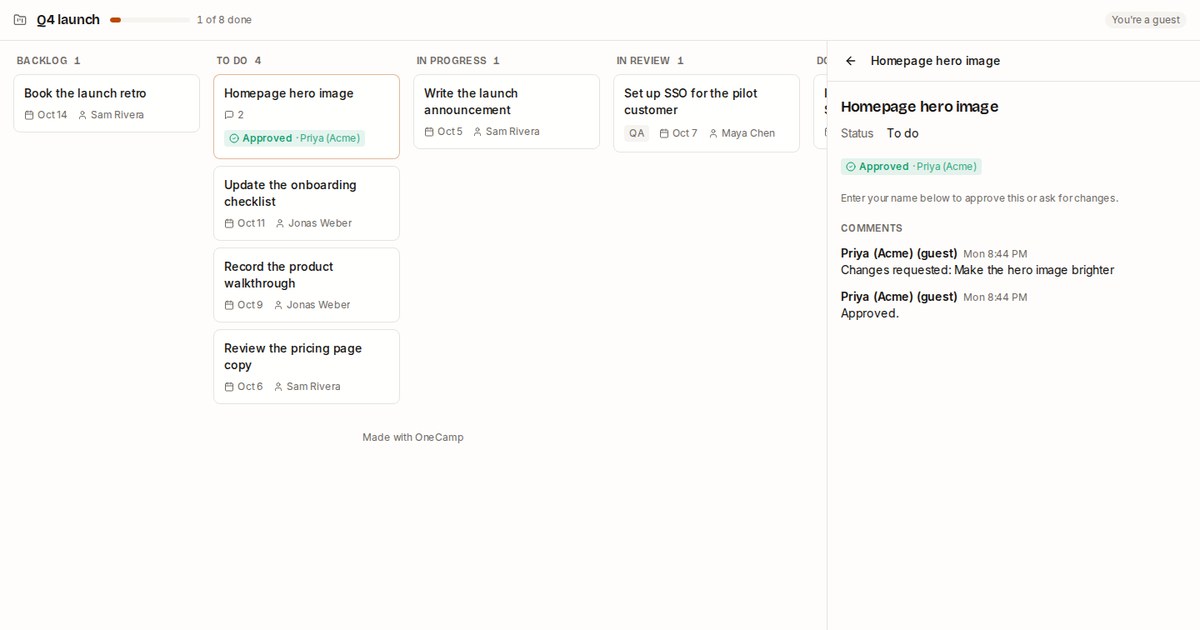
When you share a project with Can see and comment, every task the client opens now has two buttons: Approve and Request changes. Asking for changes needs a note ("make the hero image brighter"), so you're never left guessing what they meant.
What happens next:
- The verdict shows on the task's card on the client's board, so they can see at a glance what they've signed off.
- It shows in your own task panel too, on a Client row: approved, or changes requested with the note.
- It arrives as the client's comment, so the people on the task are told the way any comment tells them.
- A newer verdict replaces the older one on the card; the comments keep the whole history.
The picture at the top is the client's view after asking for a change and then approving it. Nobody needed an account.
Turn the hours into an invoice
On the project, press the clock button to open the time report, then Make an invoice. A page opens with the billable time for the range you picked.
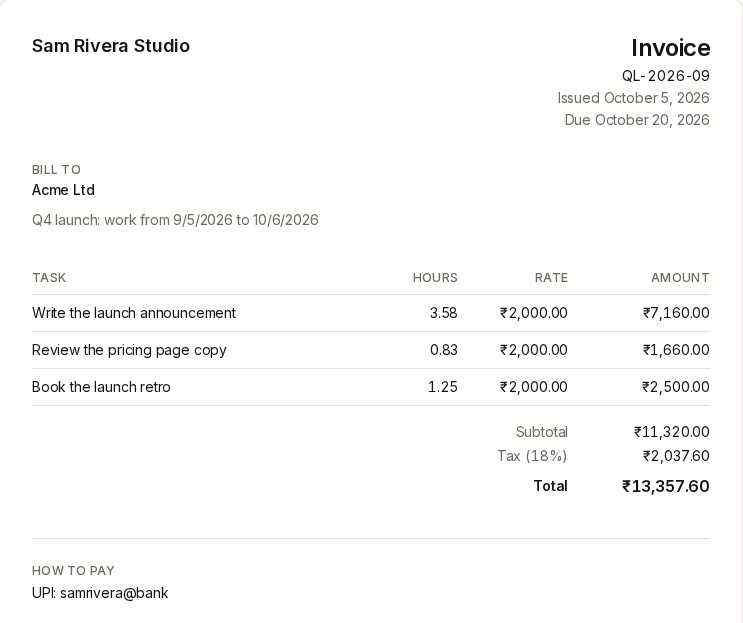
On the left you fill in:
- The rate: your hourly rate, the currency (rupees, dollars, euros, pounds and more), the tax rate (GST or VAT), and whether the invoice has one line per task or one per person.
- Bill to: the client's name and address.
- From: your business, its address, your tax ID (GSTIN, VAT number) and how to pay you (bank details or a UPI ID).
- The invoice: its number (one is suggested), the issue and due dates, and a note.
The invoice on the right updates as you type. Print or save as PDF opens your browser's print dialog; choose "Save as PDF" and you have the file to send. The PDF is made on your own computer.
Your business details are remembered in your browser, and so are each project's client details and rate, so next month's invoice for the same client is a couple of clicks.
Only billable time is invoiced. Time you marked as not billable stays in the report, but not on the bill.
Fixed: public pages scroll on phones
This one was embarrassing. The signed-in app keeps the page itself still and scrolls inside its panes, and the rule that did that applied to every page, including the ones you send to people outside your team. On a phone, a client filling in your intake form couldn't scroll down to Submit, and a booking page cut off its later times.
Now only the signed-in app holds the page still. Forms, booking pages, shared docs and tables scroll the way any web page does.
Also fixed: in shared channels and on project links, a message from a client or from someone on the Slack bridge now shows their name ("Priya (Acme) (guest)") as the author, instead of a generic "Guests" with the name in brackets above the text.
Try it
- In the live demo, open Q4 launch, press the globe to make a client link, and open it in a private window: approve a task there and watch it show up on the task in the demo. Then press the clock and Make an invoice: there are a few days of time already logged.
- On your own server: onemana.dev/free gives you the install command, no email needed.
- The docs: Share a project with a client and Time tracking.
Leaving another tool? There are now short pages on moving from Slack, Basecamp, Notion, ClickUp and Toggl, each with what the other tool does better and how to bring your work across.
These arrived in OneCamp v2.48.0 (with AI) and v1.33.0 (without AI).
Get the next one
I write these as I build OneCamp: what broke, what it cost, and what I changed.