Your Chat, Your Doc And Your Board, Side By Side
If you're new here: OneCamp is a self-hosted workspace (chat, tasks, docs, calls, calendar and AI agents) that you install on your own server. It is open source and free for up to 25 people.
The animation at the top of onemana.dev shows a chat, a task, a doc and a call in one view. Until today the app itself showed one thing at a time, plus a side panel. Now it does what the animation shows.
Side by side
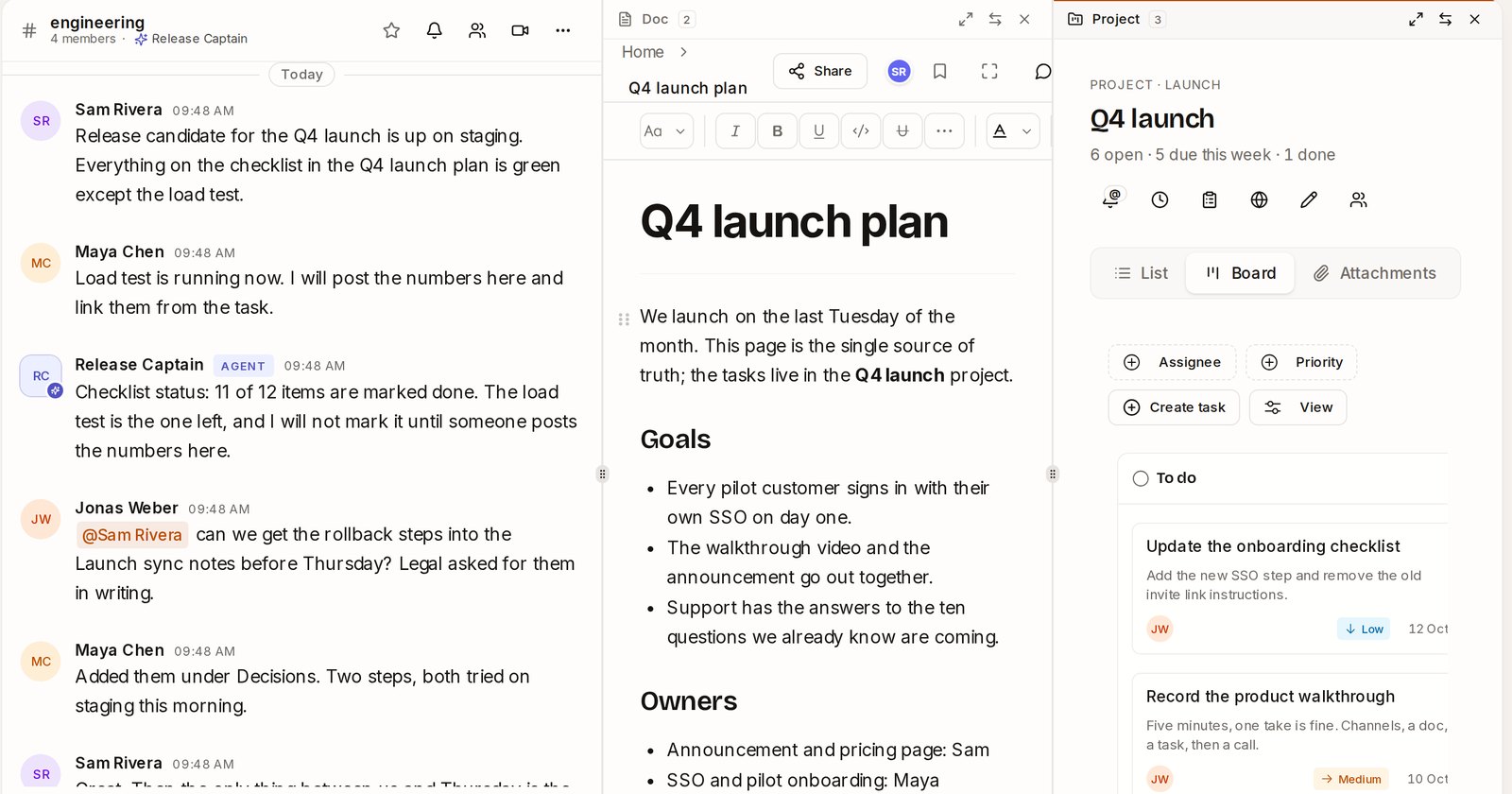
The picture at the top is one screen: the #engineering channel, the launch plan doc and the project board, all live. You can type in the channel while you read the doc, and drag a card on the board while the channel scrolls.
To open something beside what you're looking at:
- Hold Alt (Option on a Mac) and click any link to a channel, chat, doc, project or task.
- Or hover over it in the sidebar and press the small side by side button.
- Or press Ctrl + Alt + \ to put the page you're on beside, so the main area is free for the next thing.
You can have the main page and two more. Drag the dividers to resize them. Each side view has three buttons on its bar:
- Focus shows that view alone, full width. Press it again and the others come back exactly as they were (scroll position, half-written messages, everything).
- Swap makes it the main view, and puts the main view where it was.
- Close.
Your layout is remembered, so tomorrow morning the same three views are waiting.
Doing it from the keyboard
Every shortcut is Ctrl + Alt (Control + Option on a Mac), so none of them clash with your browser, the editor or OneCamp's own Ctrl/⌘ + K:
| Keys | What it does |
|---|---|
| Ctrl + Alt + 1 / 2 / 3 | Jump to the main view, the first or the second side view (the cursor lands in its message box or editor) |
| Ctrl + Alt + [ and ] | The previous or next view |
| Ctrl + Alt + Enter | Focus: this view alone, and back |
| Ctrl + Alt + F | Full screen, and back |
| Ctrl + Alt + S | Swap this view with the main one |
| Ctrl + Alt + W | Close this view |
| ? | The list of shortcuts |
Some details I spent time on so you don't run into them. In a doc, Ctrl + Alt + 1 to 3 already make headings, so the view numbers only take over while views are open side by side. On keyboards where AltGr types letters (ś, @, \), AltGr never counts as a shortcut. And Linux desktops use Ctrl + Alt + arrows to switch workspaces, which is why moving between views uses brackets.
Tags you pick, and filter by
A task used to have one label, one word, typed into a box that silently refused spaces. Now a task has tags: press Add tags at the top of a task, pick from the tags the project already uses (most used first), or type a new one. Up to ten per task, spaces allowed, and each tag keeps its own colour everywhere. Board cards and list rows show them, and the board has a Tag filter next to Assignee and Priority.
If your project is linked to GitHub, tags and GitHub labels stay in step both ways, one label at a time.
Boards: swimlanes, and how long a card has waited
- Swimlanes. On a project board, View → Rows → Assignee (or Priority) cuts every column into a row per person (or priority). One drag can change both: drop Sam's To do card into Maya's In progress row and it's hers and in progress. Rows fold away, and Add task in a row fills in that person or priority for you.
- Time in status. A card that has sat in its column for a day or more shows how long (3d, 2w), and turns amber after a week, so the stuck work stands out. It counts from when the card entered that column.
- Fixed: Add task at the bottom of a column always made the task in To do, whatever the column. It lands in the column now.
Fixed: "Not authorised" for people who aren't admins
If you're a member of a team or project but not its admin, opening the team page or the project's Members panel showed a "not authorised" error. The app was asking the server who could be added to the team, a list only admins may see, even though you couldn't add anyone. It only asks now when you're allowed to add people.
Also found while looking: creating a webhook, running an archive job and deleting a call recording answered "sign in again" to everyone, admins included. They work now, and deleting a recording checks who's asking (a channel's moderators, or the people in the call).
Lighter in memory
The app kept every response it had ever fetched, and every conversation you opened, until you closed the tab. After a day of jumping between channels, tasks and docs, that added up. It now keeps the 300 most recently used responses and the 8 most recently opened conversations; anything older loads again when you go back to it, as on a first visit.
Try it
- In the live demo, open #engineering, then Alt-click Q4 launch plan and Q4 launch in the sidebar. Press ? for the shortcuts.
- On your own server: onemana.dev/free gives you the install command, no email needed.
- The guides: Side by side and Tags, board rows and time in status.
- Already running OneCamp? Update to v2.52.0 (with AI) or v1.37.0 (without AI).
Get the next one
I write these as I build OneCamp: what broke, what it cost, and what I changed.