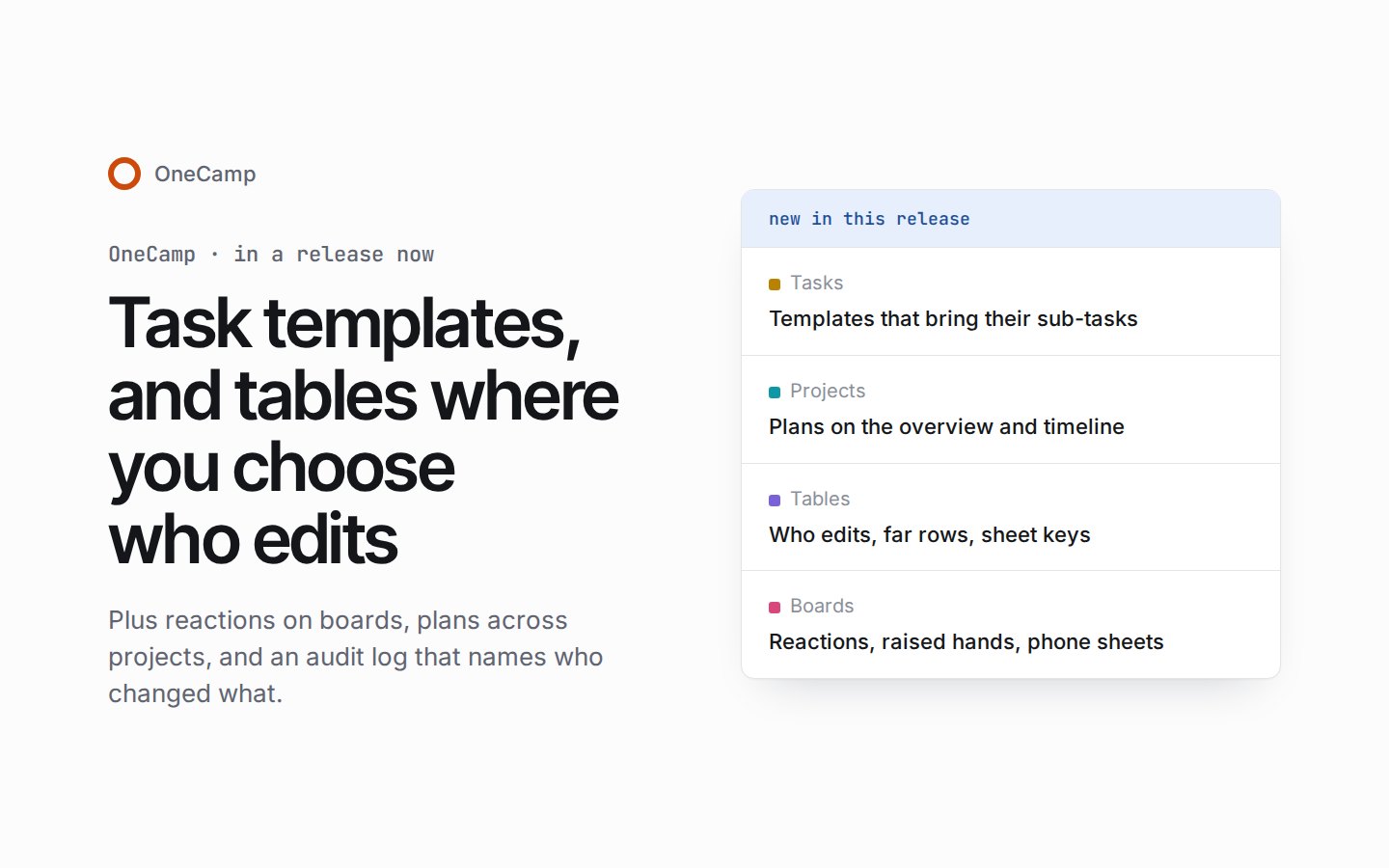
Task templates, tables where you choose who edits, and reactions on boards
If you're new here: OneCamp is a self-hosted workspace (chat, tasks, docs, calls, calendar and AI agents) that you install on your own server. It is open source and free for up to 25 people.
Everything in this post is in a new release you can install today, with AI or without: the release notes list it all, and the installation guide's Updating section has the steps.
The last post gave every project a plan and every table find and replace. This one builds on both: tasks that start from a template, plans you can compare across projects, tables where you choose who edits, and boards you can react on.
Tasks that start from a template
A project's admins can now keep task templates in the project's tools, and workspace admins keep templates for every project in Admin > Permissions. You write a template's body in Markdown with a live preview beside it, and a template can set a new task's status and who it's assigned to. With AI, that can be an AI teammate as well as one of the project's people.
New task offers the templates. Pick one and the form fills in from it, and when you make the task, the template's sub-tasks are made with it, under a restricted task too. Press Alt+C on a list, or Alt-click New task, to open New task straight at the template picker.
Plans across projects
Last time, every project got a plan on its home. Now the projects overview and the timeline read each project's plan (its status, priority, lead, labels and target) and sort by them, so you can see what's late, whose it is and what matters most without opening each project. A project has one end date, used alike by the Target column, the phone card, the sort and the timeline, and its lead is named the same way everywhere, even after they leave. Workspace admins edit the project statuses and labels in one card under Settings > Permissions.
Imports bring the plan along. A project from Linear arrives with its plan and every label, and Asana, Jira and Basecamp bring the plan and when each piece of work was done, so imported tasks count from when they were really finished.
Tables where you choose who edits
A table's share dialog now sets who may edit its rows, as a general level for everyone and person by person. The server checks every write against that choice, so it holds everywhere a table can be edited, not only in the grid.
Tables go further in smaller ways too. A table jumps straight to a far row, row heights have names, and a selected cell takes the keys you know from spreadsheets, listed in the Tables group of the keyboard shortcuts. A click selects a cell, so what you type replaces it.
Boards you can react on
Everyone on a board can react and raise a hand, guests on a share link included, and only an editor lowers someone else's hand.
Following someone now shows what they see, fitted to your own screen, with a follow frame sized for touch. Find dims the rest of the board while it has matches, and brings a frame's name into view with the frame. On a phone, every board panel opens as the app's sheet, and its fields no longer zoom the page when you tap them.
Kept, not lost
When an admin takes something away (a workspace setting, an admin configuration, a saved view, an integration or a calendar subscription), OneCamp now keeps the record, marked with who did it and when. An integration's credentials are cleared, and a setting set again comes back. Switching or disconnecting a Slack workspace keeps every channel link, marked, and a deleted cycle or form says what it was.
The admin audit log records more, too: changes to a team's people, taking someone out of a channel, taking away a manager's role, lowering or removing someone's access to a doc or board, sharing or exporting a board, and changes to a calendar, each with who did it and when. With AI, it also records every change to the workspace's AI. Its area filter now offers boards.
Fixes
- Two people joining at the same moment could both take a workspace's last seat; that's fixed.
- The connectors page could disconnect connections it didn't list; it now disconnects only what it shows.
- Media added to a message box could push your words out of sight; they now stay in view.
- A guest on a share link who reconnected or reloaded could take the place of another tab; each tab now comes back as itself.
- On a phone, a table view could run past the screen and hide its sums and New row, and the first long press on a table could fail to start a range; both are fixed.
- An installed Android app in the dark theme kept a light navigation bar and launch screen; they now follow the theme.
- The sidebar's docs list no longer moves what's below it as it loads, a slide shared in a call is framed once it has settled, and notes in another font fit again when a board opens.
With AI, the daily note from OneCamp AI could arrive over a board or a call, and on a phone take the taps meant for the board; it now waits for the next page you open. And a call can't be started in a direct message with an agent: OneCamp says why before any room opens.
Before you update
The steps are under Updating on the installation page, and the changelog has the details.
- A backup first. The release applies 17 database migrations after taking a backup. Going back to an earlier release isn't supported, so that backup is the way back.
- The web app with the server. Update the web app with the server. If you host the web app yourself, deploy the new one at the same time, and anyone with OneCamp open should reload it once the update is done.
- Scripts and integrations. An API token now works with a table's rows, acting as the token's member: read, query, update and delete rows, apply a batch as one change, read a row's history, and list and restore the table's trash. With AI, agents can do the same over MCP. New routes cover task templates and who may edit a table (the release notes list them), and existing routes keep their paths.
What's next
The live demo keeps moving, and the next post will say what reached it. If you run OneCamp, the update is ready when you are; if you don't yet, the live demo is the quickest way to try it.
The product behind these posts
OneCamp is your team's chat, docs, tasks and calls in one open-source app on your own server, with AI agents that can only do what you can.
No sign-up · Free for up to 25 people
Get the next one
I write these as I build OneCamp: what broke, what it cost, and what I changed.