Half The Team Was Still In Slack, And Everyone's Email Was In Another Tab
If you're new here: OneCamp is a self-hosted workspace (chat, docs, tasks, calls, a calendar and AI teammates) that runs on your own server, and as of today it is open source.
The most common reason a team does not switch to anything is not the product. It is the two places work keeps arriving that are not the product: the people who are still in Slack, and the email nobody is going to stop getting. This week both of those got a way in.
Moving off Slack without a big-bang weekend
OneCamp has had a Slack importer for a while: hand it a Slack export and it brings the channels and history across. That works for a cutover. It does not work for the much more common situation, where some of the team is ready and some of it is not, and a client or another department lives in your Slack and is never moving.
The Slack bridge keeps a Slack channel and a OneCamp channel in one conversation:
- A message written in Slack appears in OneCamp, led by the sender's name.
- A message written in OneCamp appears in Slack under its author's name.
- Replies in a thread, edits and deletions follow, both ways.
- People on the Slack side need no OneCamp account and take no seat.
So you can move the people who are ready, keep everyone in the same conversation, and switch off the bridge whenever the last person has moved, or never.
Setting it up
You need to be an admin in OneCamp and able to install apps in your Slack workspace. It takes about five minutes:
- In OneCamp, open Admin, Integrations, Slack bridge and press Create the app in Slack. Slack opens with the app already described: its name, exactly the permissions it needs, and where to send messages. Choose your workspace and create it.
- In Slack, press Install to Workspace.
- Paste two values from the Slack app into OneCamp, the Bot User OAuth Token and the Signing Secret, and press Connect Slack.
- Pick a Slack channel and a OneCamp channel and press Link. The app joins a public Slack channel on its own; for a private one, type
/invite @OneCampin it first.
The Slack bridge guide has the details.
What it deliberately does not do
- It never loops. A message the bridge carried into one side is never carried back, and an edit only travels away from the side that wrote it. That is built into how messages are recorded, not a filter that can miss a case.
- Files shared in Slack arrive as links to the file in Slack.
- Agents and workflows answer in OneCamp only. A Slack channel full of a bot's replies was not something anyone asked for.
- History from before you linked the channels is not copied. That is what the importer is for.
- Privacy: linking a private OneCamp channel shows its messages to everyone in the Slack channel, and the card says so before you press Link.
If Slack ever refuses a message, because the app's token was revoked or someone removed it from a channel, the card says exactly that, with the fix, rather than going silent.
Your Gmail, inside OneCamp
The other place work arrives is email. Someone asks for something by email, you read it in another tab, and then you retype it into a task, or forget to.
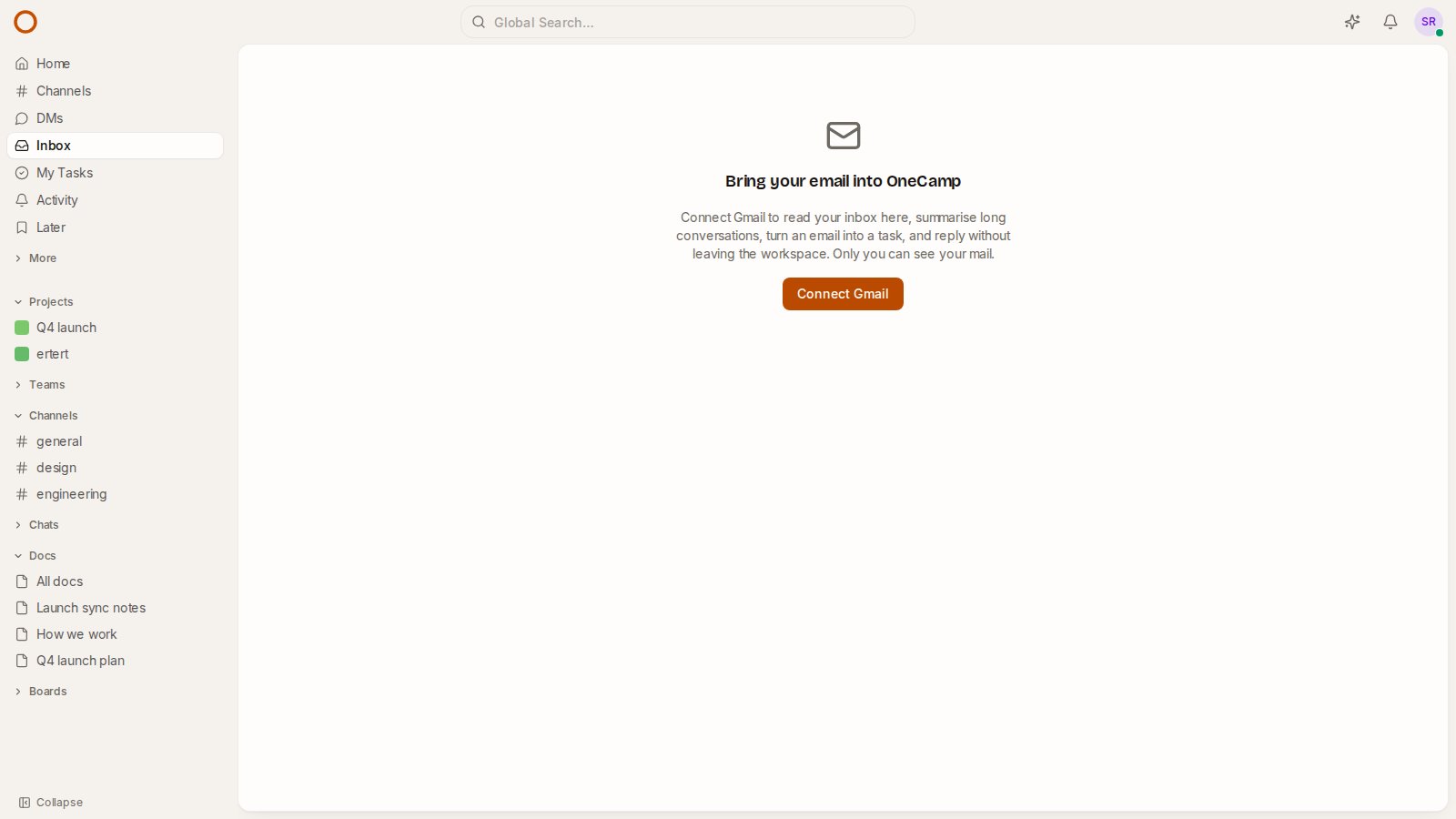
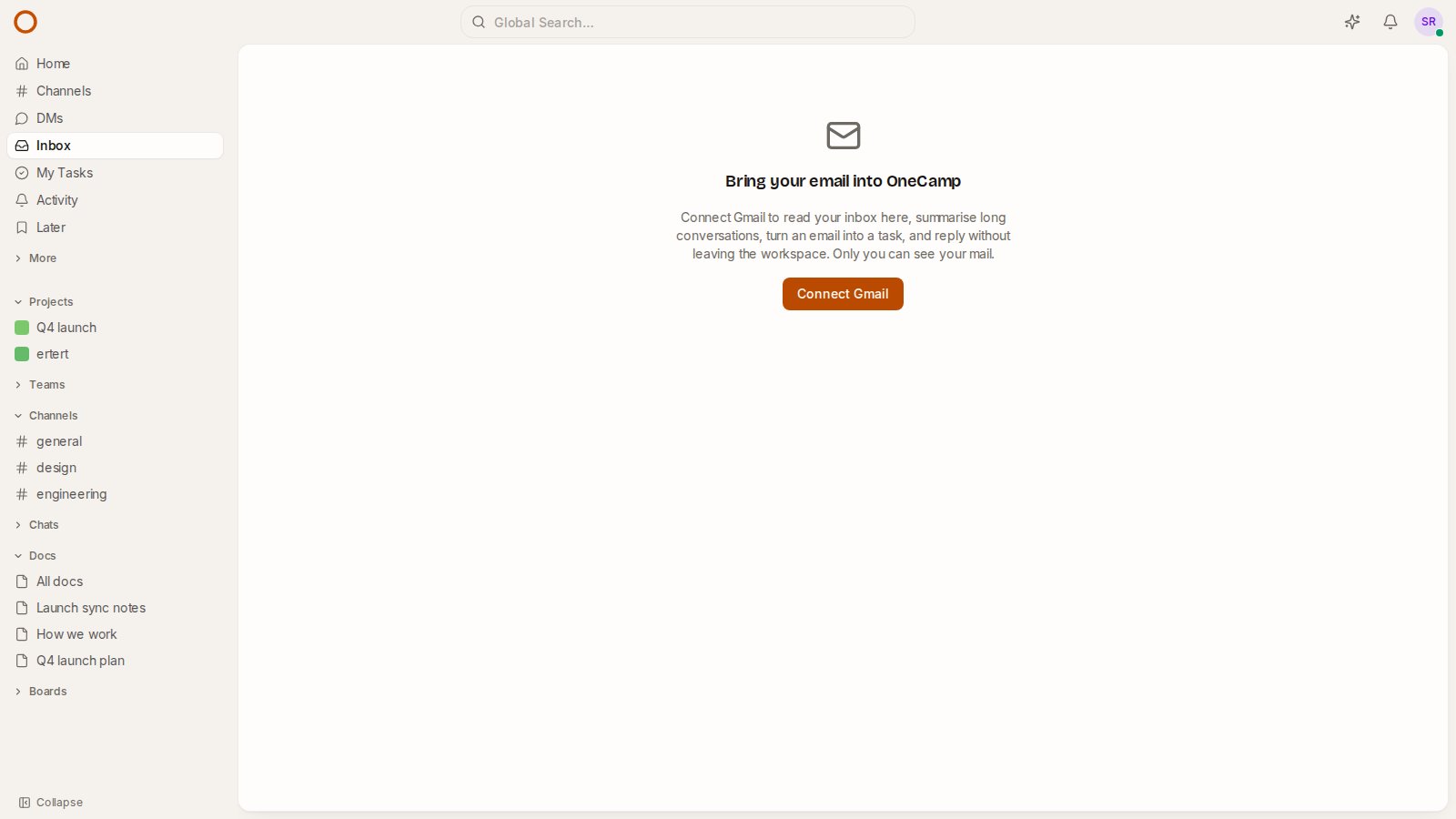
There is now an Inbox in OneCamp's sidebar. Connect Gmail once (the Inbox page has the button) and you can:
- Read and search your inbox, with Gmail's own search syntax.
- Summarise a long conversation in one click: what it is about, what is being asked of you, and any dates or amounts. This runs on your workspace's own AI setup, under the same rules as every other AI feature.
- Make a task from an email. The task opens pre-filled with the subject and a quote, and links back to the email, so the context is one click away.
- Reply, in the same conversation, from your own address.
Email is hostile input
Email is the one place in a workspace where anyone in the world can put content in front of you, so the Inbox treats every message that way:
- Remote images are removed. An image loaded from a sender's server is how they learn that you opened their email, and when. In OneCamp's Inbox, opening an email tells its sender nothing.
- Message bodies are cleaned twice, once on the server and again in your browser. Scripts, forms and styles that could cover the page never reach it.
- Only you see your mail. It is read with your own Gmail connection, on your behalf, and nobody else in the workspace, admins included, can open it through OneCamp.
- Reading here does not mark a message read in Gmail. OneCamp asks Gmail for permission to read and to send, and nothing else, so it cannot change your mailbox.
Attachments open in Gmail, one click from the message.
While building the reply, I found that the older "send an email" feature that agents use copied the recipient and subject into the message without checking them, so a line break in either could have added a hidden recipient. It now refuses them.
Try both
Both are in the latest release: OneCamp v2.38 (with AI), and v1.24 for the edition with no AI, where the Inbox has everything but the summary. On a self-hosted install, Admin, Health and updates tells you if you are behind and the one command to update.
The live demo has the Inbox in its sidebar. Next post: agents that finish what they start.
Get the next one
I write these as I build OneCamp: what broke, what it cost, and what I changed.